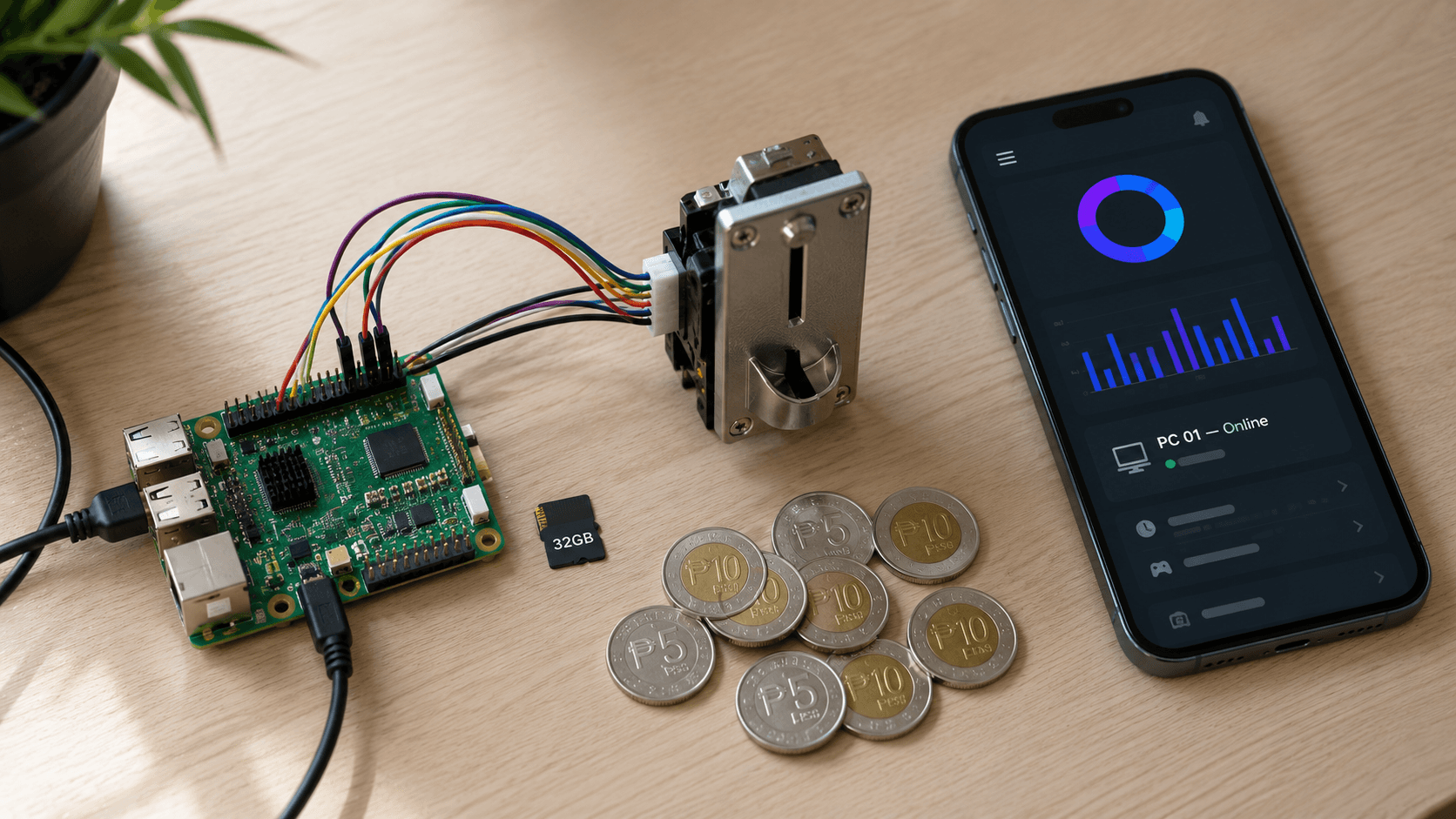
How to Set Up Pisonex on Your Orange Pi One in 30 Minutes
A simple step-by-step guide to setting up your Pisonex cafe server on the Orange Pi One. Flash, wire, configure — done in under 30 minutes.
You bought an Orange Pi One. You got the Pisonex SD card image. Now you are staring at a tiny green board, wondering — okay, what now?
Do not worry. Setting up Pisonex is much simpler than it looks. By the end of this guide, you will have a working cafe management server in under 30 minutes — and you do not need any Linux knowledge to do it.
Let's go.
What You Need Before Starting
Gather these parts before you begin. Most are cheap and available at any electronics shop:
- Orange Pi One board
- 32 GB MicroSD card, Class 10 (avoid generic brands — they fail under continuous use)
- 5V 2A power supply with a 4.0×1.7 mm barrel jack
- Ethernet cable
- Coin acceptor with a 12V power adapter
- A few jumper wires
- A computer with internet and an SD card reader
That is everything. Let's start.
Step 1: Flash the SD Card
The SD card is where the entire Pisonex system lives. We will write the image to it using a free tool called Etcher.
Download Etcher from etcher.balena.io. It works on Windows, Mac, and Linux. Install it the normal way.
Plug your SD card into your computer using a card reader. If Windows asks you to format the disk — click Cancel. Do not format it. That message is harmless.
Open Etcher. You will see three buttons:
- Flash from file — choose the Pisonex zip we sent you
- Select target — pick your SD card from the list
- Flash! — confirm and wait
The whole flash takes about 10 minutes. When you see the green checkmark, eject the SD card safely and remove it.
Step 2: Boot Your Server
Slide the SD card into the slot on the underside of your Orange Pi.
Connect an Ethernet cable from your Pi to your router. Then plug in the 5V power supply.
Important: Do not use a phone charger. The Orange Pi One needs a real 5V 2A barrel-jack supply. Phone chargers cause crashes and corrupted SD cards.
The green LED lights up. The red LED blinks as the system boots. Wait 90 seconds — the first boot is slow because the Pi is generating unique security keys for your device. Every boot after that takes about 30 seconds.
Find Your Server's IP Address
You have two easy ways to find your server on the network:
Option 1 — Use the Pisonex Client (fastest)
If you already have a Windows PC ready, this is the easiest method. Install the Pisonex Client on the PC (we cover this in Step 5), open the Setup dialog, and click Scan. The client will scan your local network and automatically find any Pisonex servers running on it. No router login needed.
Option 2 — Check your router
If you do not have a PC ready yet, find the IP through your router's admin page. Open a browser on your phone or laptop and go to one of these addresses:
http://192.168.1.1http://192.168.0.1
Log in (the password is usually on the sticker on the back of your router). Look for Connected Devices or DHCP Clients. Your Pi will be listed as orangepione with an IP like 192.168.1.27.
Open the Dashboard
Once you have the IP, open it in your browser like this:
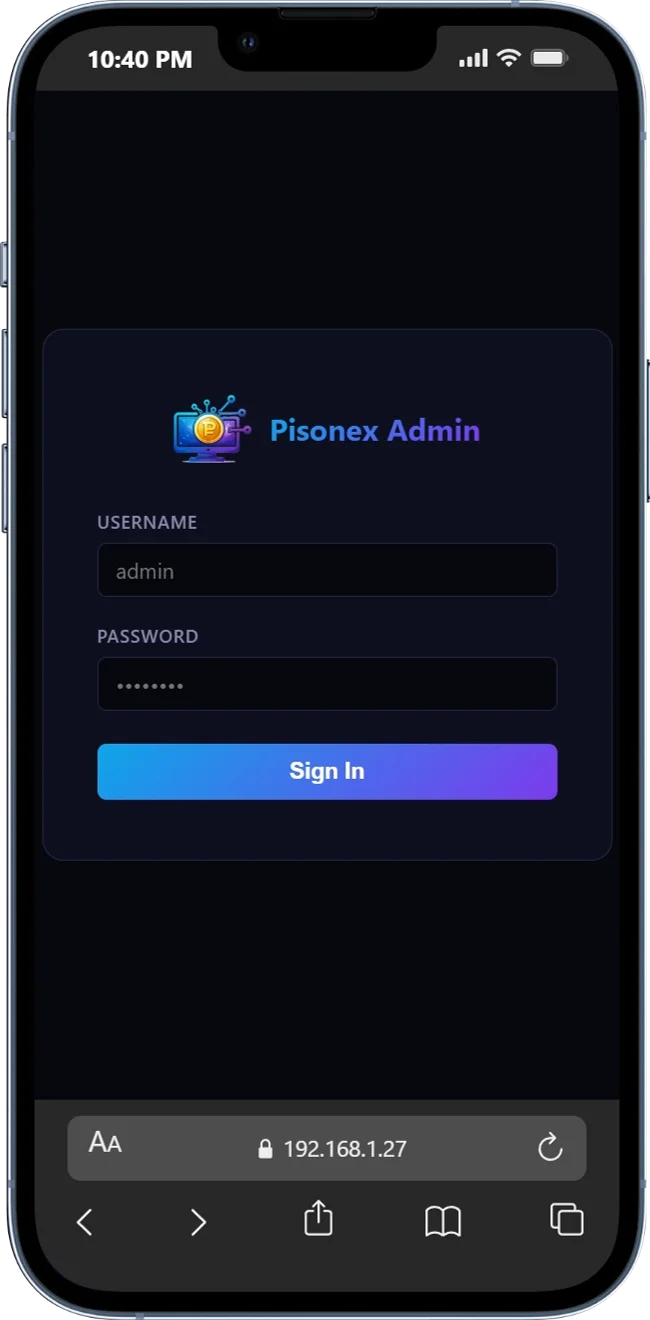
Log in with:
| Field | Value |
|---|---|
| Username | admin |
| Password | admin123 |
You should see the Pisonex dashboard. Welcome aboard.
First thing to do: Change that password immediately. Go to Settings → Security → Admin Password and pick something strong. Anyone on your shop's network can reach this page.
Step 3: Wire the Coin Acceptor
This is the part that worries most owners — but it only takes three wires.
Power down the Pi first. Unplug the power supply and wait five seconds. Working on a powered board can damage it permanently.
You will only use three of the 40 pins on the Orange Pi's header:
| Pin | What it does |
|---|---|
| Pin 3 | Receives the coin signal |
| Pin 5 | Controls the relay (optional) |
| Pin 6 | Ground |
To find these pins, hold the Orange Pi with the USB ports facing you and the Ethernet port on the right. The 40-pin header runs along the top. Count from the corner — pins 1 and 2 are the closest pair, then 3 and 4, then 5 and 6.
Connect the Wires
Most multi-coin acceptors (like the popular CH-926) have four wires. Connect them like this:
- Red wire — positive terminal of your 12V power supply
- Black wire — negative terminal of the 12V supply AND Pin 6 on the Pi
- White (signal) wire — Pin 3 on the Pi
That black wire going to TWO places is the part most people miss. Without the common ground between the coin acceptor and the Pi, the signal pulse will not register — even though the acceptor's own LED will flash to confirm each coin.
Once everything is wired and you have double-checked nothing is touching, plug the 12V supply in first, then the Pi's 5V supply.
Step 4: Configure Your Shop
Open the dashboard again. Set up these three things:
Settings → Branch — enter your shop's name. This appears on all your reports.
PC Management → Rate Settings — set how much time each peso buys. The default is 5 pesos for 30 minutes. Adjust to match your local pricing.
Settings → Coin Slot Hardware — the defaults work for most coin acceptors. If you find your coins are double-counting, raise the debounce value from 30 to 50 milliseconds.
Step 5: Install the Client on Each PC
Each customer PC needs the Pisonex Client installed.
On each PC, run PisoNetClient-Setup.exe as administrator. When the setup dialog appears, you have two ways to point the client at your server:
The easy way — click Scan
In the setup dialog, click the Scan button next to the Server URL field. The client will scan your local network and automatically find your Pisonex server. Pick it from the list — the URL fills in for you.
This is the recommended method. You never have to type or remember the IP address.
The manual way
If the scan does not find your server (rare — usually means a firewall or VLAN is blocking it), enter the server URL by hand: http:// followed by your Pi's IP (example: http://192.168.1.27).
Then assign a unique PC Number to that PC — 1, 2, 3, and so on. Each PC in your shop must have a different number.
The lock screen will appear immediately. Repeat on every PC.
Back on the dashboard, each PC will appear as a card within seconds.
Time to Test
From the dashboard, click PC 1 → Unlock with 5 minutes. The PC unlocks instantly, the lock screen disappears, and a small timer overlay appears in the corner.
Click + Add Time on the timer overlay. You will hear the relay click and see the coin acceptor light up. Drop a peso in. Within a second, the dashboard's Receiving Coins card will show "₱5 inserted."
Click Done inserting Coins and the timer updates with the new time.
If all of that worked — congratulations. You have a working Pisonex cafe.
Common Issues
Coin not registering, but the acceptor's LED is flashing? Almost always a missing ground connection. The black wire from the acceptor must connect to BOTH the 12V negative terminal AND Pin 6 on the Pi. Both — not one or the other.
Client Scan does not find the server? Wait 90 seconds after powering on the Pi — the server takes that long to start on first boot. If it still does not appear, make sure both the PC and the Pi are on the same Wi-Fi or LAN (not on a guest network).
Dashboard will not load? Wait longer — first boot takes 90 seconds. Then re-check the IP via your router; some routers reassign IPs after restarts.
Forgot the admin password? There is no password reset in v1.0 — SSH is intentionally disabled for security. The only fix is to re-flash the SD card and start fresh. So write your password down somewhere safe the first time you change it.
You Are Ready
That is the entire setup. From here, you can register members, view daily earnings, push announcements to all your PCs, and monitor your whole shop from your phone.
Pisonex is built to be invisible after setup — it just runs, quietly tracking every session and every peso, while you focus on growing your shop.
👉 Download Pisonex for free — pisonex.com/download
Setting up your first pisonet shop, or upgrading from manual billing? Check out our other guides at pisonex.com for more tips built specifically for Filipino pisonet operators.
Comments
Sign in to join the conversation.
Sign in to commentNo comments yet. Be the first to comment!